eduroam Network Installation
Getting eduroam to work on Linux is more painful than it should be. Every “official” method I tried failed; the connection would just hang during the TLS handshake and never connect. I eventually figured out a manual setup that works reliably and wrote a script around it. Sharing it here so you hopefully don’t have to go through the same process.
What doesn’t work
cat.eduroam.org installer (official)
The Python installer from cat.eduroam.org provides a graphical interface and creates a connection profile. It reports “Installation successful” without ever attempting a connection, and the connection then hangs indefinitely during the TLS handshake.
The cause is not NetworkManager: the CA embedded in Saxion’s CAT profile is the pre-migration USERTrust / GEANT OV RSA CA 4 chain, while the RADIUS server now chains to HARICA roots. Validation cannot succeed. See #109 for the fingerprints and handshake logs.
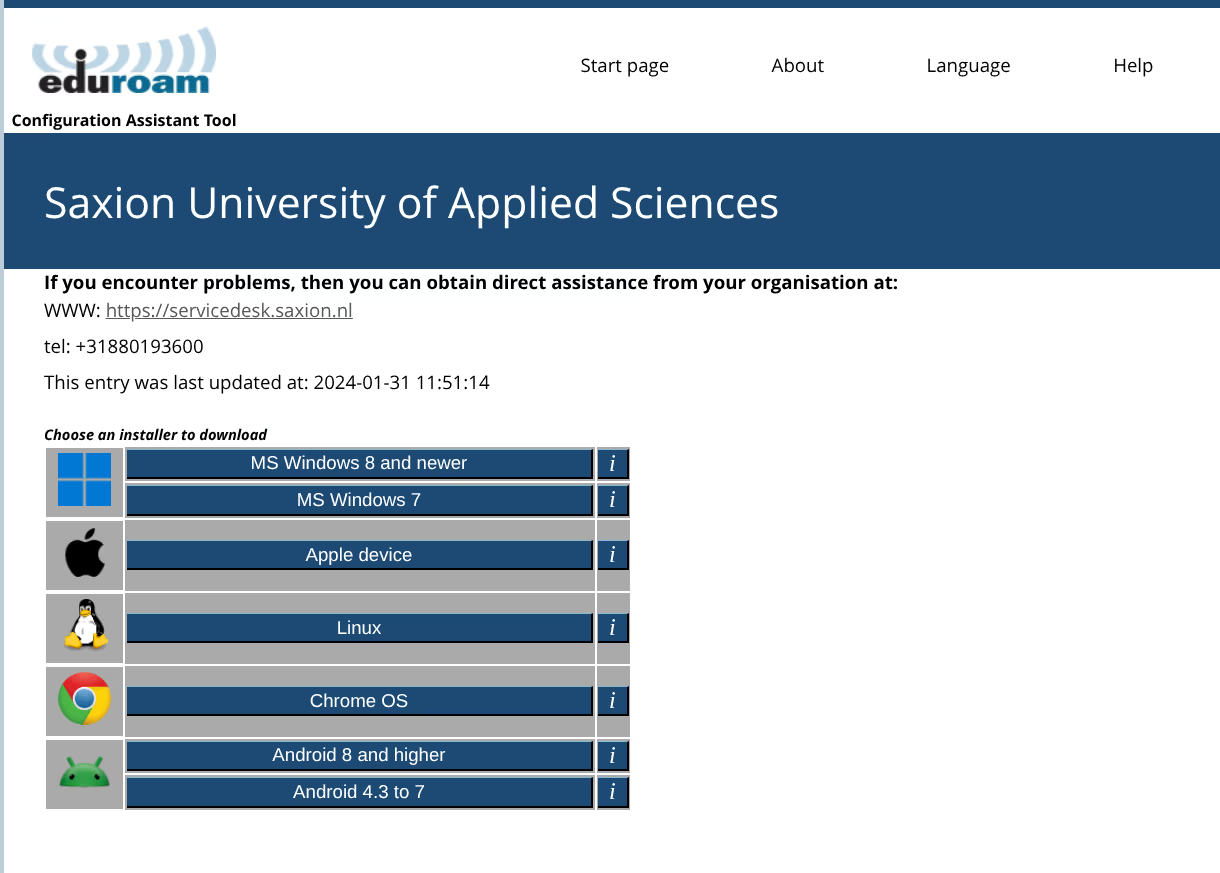
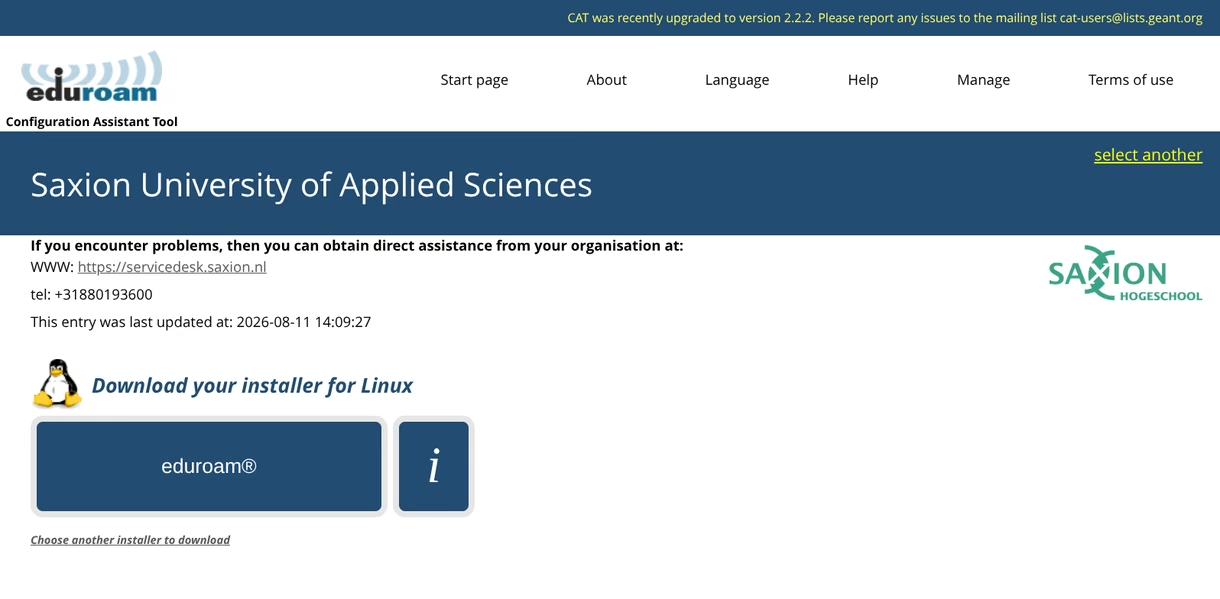
Update, August 2026. The profile was touched on 2026-08-11, but the CA was not corrected. The installer downloaded from this page still ships the pre-migration USERTrust chain, so it still cannot validate the server. Both screenshots are kept here: the first shows the entry sitting untouched since January 2024, the second shows a recent edit that did not fix the actual problem.
geteduroam Linux app (official)
The geteduroam Linux app (CLI and GUI RPM) may also experience connection issues on some recent distributions.
easyroam-linux (community)
easyroam-linux by jahtz may not work on all distributions.
UvA/HvA Linux eduroam guide
The guide at linux.datanose.nl (UvA/HvA) may not result in a working connection on all recent systems.
What does work
PEAP/MSCHAPv2 validated against Saxion’s own certificate authority, pinned inside the
script, plus domain-suffix-match (the modern replacement for the deprecated
altsubject-matches).
The script used to point at the system trust store, which meant any of the roughly 150
public CAs your distribution ships could vouch for a server calling itself
ise.infra.saxion.net. It now trusts four HARICA roots and nothing else:
| Root | Key | Expires |
|---|---|---|
| Hellenic Academic and Research Institutions RootCA 2015 | RSA | 2040 |
| HARICA TLS RSA Root CA 2021 | RSA | 2045 |
| Hellenic Academic and Research Institutions ECC RootCA 2015 | ECC | 2040 |
| HARICA TLS ECC Root CA 2021 | ECC | 2045 |
The RSA pair is what the server serves today, and both members of it are pinned for a reason. The server currently chains through the cross-signed 2021 root up to the 2015 root, but HARICA publishes that cross certificate as valid only until 2029-08-31. After that date the chain has to terminate at the self-signed 2021 root, which is already pinned here and already what OpenSSL terminates on today.
The ECC pair covers a move off RSA. HARICA’s repository already lists
HARICA GEANT TLS ECC 1 (2025) among its intermediates, so that path exists. All four
are HARICA roots, so this stays one CA operator.
| Date | What happens |
|---|---|
| 2029-08-31 | Cross certificate expires; chain must terminate at the self-signed 2021 root |
| 2040-06-30 | Both 2015 roots expire |
| 2045-02-13 | Both 2021 roots expire |
Fingerprints last checked against HARICA’s repository on 2026-08-31.
Verify the pinned roots yourself
Don’t take this page’s word for it. HARICA publishes the fingerprints of its own roots at repo.harica.gr. Pick the root from the dropdown and compare its SHA-1:
| Entry in HARICA’s repository | SHA-1 fingerprint |
|---|---|
| HARICA Root Certification Authority, 2015 | 01:0C:06:95:A6:98:19:14:FF:BF:5F:C6:B0:B6:95:EA:29:E9:12:A6 |
| HARICA TLS RSA Root CA 2021, 2021 | 02:2D:05:82:FA:88:CE:14:0C:06:79:DE:7F:14:10:E9:45:D7:A5:6D |
| HARICA ECC Root Certification Authority, 2015 | 9F:F1:71:8D:92:D5:9A:F3:7D:74:97:B4:BC:6F:84:68:0B:BA:B6:66 |
| HARICA TLS ECC Root CA 2021, 2021 | BC:B0:C1:9D:E9:98:92:70:19:38:57:E9:8D:A7:B4:5D:6E:EE:01:48 |
To check what the script actually installed on your machine:
awk '/BEGIN CERT/,/END CERT/' ~/.config/saxion-eduroam/saxion-eduroam-ca.pem |
  csplit -zs -f /tmp/root- -b '%d.pem' - '/BEGIN CERT/' '{*}'
for f in /tmp/root-*.pem; do
  openssl x509 -in "$f" -noout -subject -fingerprint -sha1
done
Every fingerprint printed must appear in the table above. If one does not, do not use the script. Open an issue instead.
This is the same check we run: nothing is pinned because a handshake offered it, only because the CA operator publishes it.
GÉANT moved its Trusted Certificate Service to HARICA, and the official CAT profile still pins the pre-migration USERTrust chain, which is why the official installer fails. If Saxion changes CA operator again this script will break too, but it now prints the chain the server actually served instead of hanging silently.
Requirements:
- Python 3.11+ (standard library only, no
pip install, nodbus-python) - NetworkManager 1.8+ (
nmcli) - Optional:
zenity(GNOME) orkdialog(KDE) for graphical prompts; falls back to the terminal - Optional: access to the system journal, used to explain certificate failures
Connection settings
| Setting | Value |
|---|---|
| Security | WPA & WPA2 Enterprise |
| Authentication | Protected EAP (PEAP) |
| PEAP version | Automatic |
| Inner authentication | MSCHAPv2 |
| CA certificate | The HARICA roots the server chains to, written to ~/.config/saxion-eduroam/saxion-eduroam-ca.pem |
| Domain validation | domain-suffix-match: ise.infra.saxion.net |
| Phase2 domain validation | phase2-domain-suffix-match: ise.infra.saxion.net |
| Anonymous identity | anonymous@saxion.nl |
| Identity | user@institution.tld |
Automated setup (recommended)
A Python script automates the full nmcli connection setup for Saxion:
# 1. Download
curl -LO https://zephyrus-linux.thectic.nl/scripts/saxion-eduroam.py

# 2. Verify checksum
echo "17cd13c629ce480ece1a7896aff7d4061347ea0082b32dfa6b23dac6b34882ad  saxion-eduroam.py" | sha256sum -c

# 3. Run
python3 saxion-eduroam.py
When the certificate stops matching
The trusted chain is pinned inside the script, so it breaks the day Saxion
changes certificate authority. That is exactly what happened in
#109. If the script
reports unknown CA or fails to authenticate, --ignore-certificate connects
without validating and prints the chain the server actually served:
python3 saxion-eduroam.py --ignore-certificateCopy the root it reports into SAXION_CA_PEM, open an issue with it, and
reconnect without the flag.
Do not leave this on. Without validation, any access point calling itself
eduroam is trusted. It can terminate the TLS tunnel itself and capture the
MSCHAPv2 exchange, which is crackable offline. That is your Saxion password.
domain-suffix-match does not help here: it checks the name on a certificate
nobody verified. Use the flag to diagnose, then reconnect properly.
SHA256: 17cd13c629ce480ece1a7896aff7d4061347ea0082b32dfa6b23dac6b34882ad
The script removes any existing eduroam profile, prompts for your username via a GUI dialog (kdialog on KDE, zenity on GNOME) or a terminal fallback, and activates the connection. Your password is never asked by the script; it is requested by your keyring (GNOME Keyring or KWallet) at connection time and stored encrypted, never in plaintext.
Useful flags:
| Flag | Purpose |
|---|---|
-u, --username | Supply the username instead of being prompted |
--silent | No dialogs; prompt and report on the terminal only |
--ignore-certificate | Skip validation and print the chain the server served. Debugging only, see the warning above |
ise.infra.saxion.net). For other institutions, use the official CAT script from cat.eduroam.org as a starting point.If everything goes well, you should see something like this:
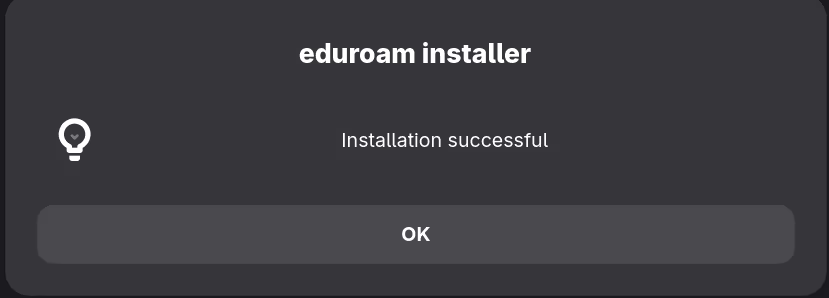
Source: saxion-eduroam.py
Manual setup via nmcli
This command stores the password directly in the connection profile. The automated script above uses password-flags 1 instead, which hands the password to your keyring. Both work; the script’s method is more secure.
It also references ~/.config/saxion-eduroam/saxion-eduroam-ca.pem, which only exists once the script has been run. Run the script first, or drop the 802-1x.ca-cert line and accept that the chain is then unvalidated.
nmcli connection add \
  type wifi \
  con-name "eduroam" \
  ssid "eduroam" \
  wifi-sec.key-mgmt wpa-eap \
  802-1x.eap peap \
  802-1x.phase2-auth mschapv2 \
  802-1x.identity "user@institution.tld" \
  802-1x.password "your-password" \
  802-1x.anonymous-identity "anonymous@saxion.nl" \
  802-1x.ca-cert file://$HOME/.config/saxion-eduroam/saxion-eduroam-ca.pem \
  802-1x.domain-suffix-match "ise.infra.saxion.net" \
  802-1x.phase2-domain-suffix-match "ise.infra.saxion.net"
Then connect:
nmcli connection up eduroamManual setup via GNOME Settings
- Open Settings → Wi-Fi
- Select eduroam
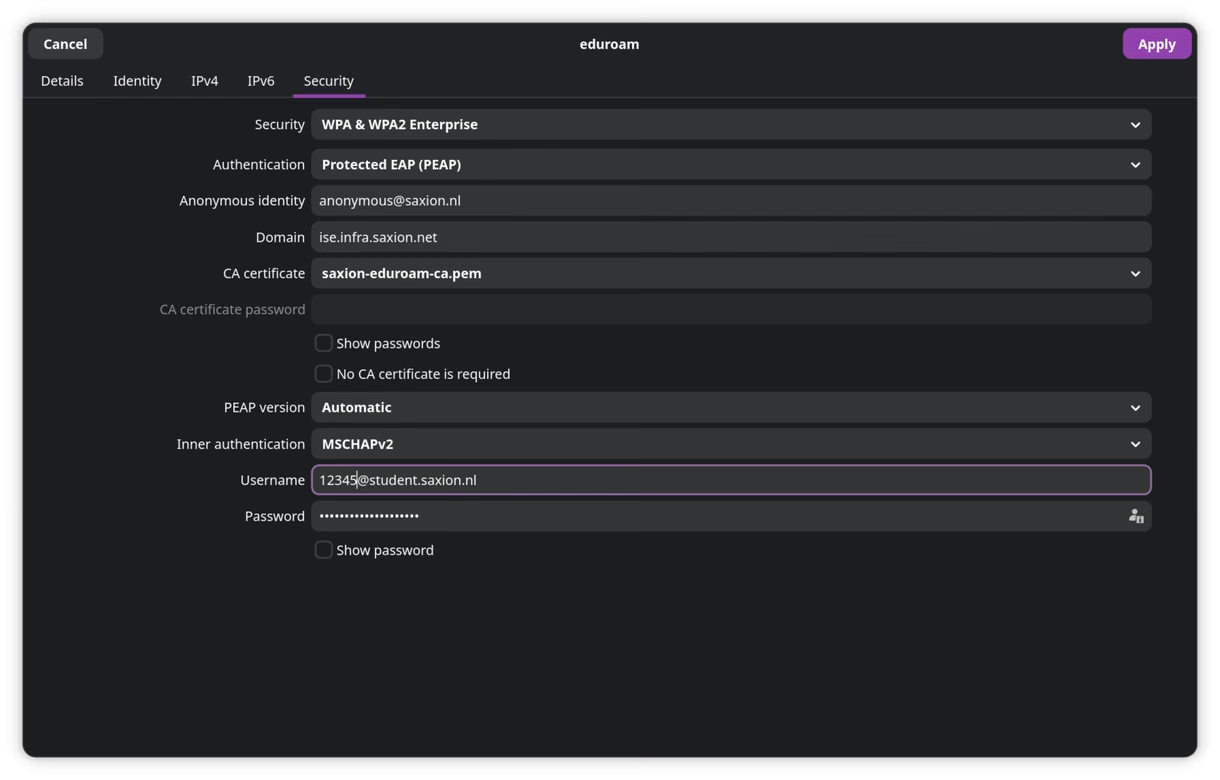
- Go to the Security tab and fill in the settings from the table above
- Enter your institutional credentials
- Click Apply
Here’s what the Security tab should look like:
Removal
nmcli connection delete eduroam