WinBoat: Windows via Podman Container
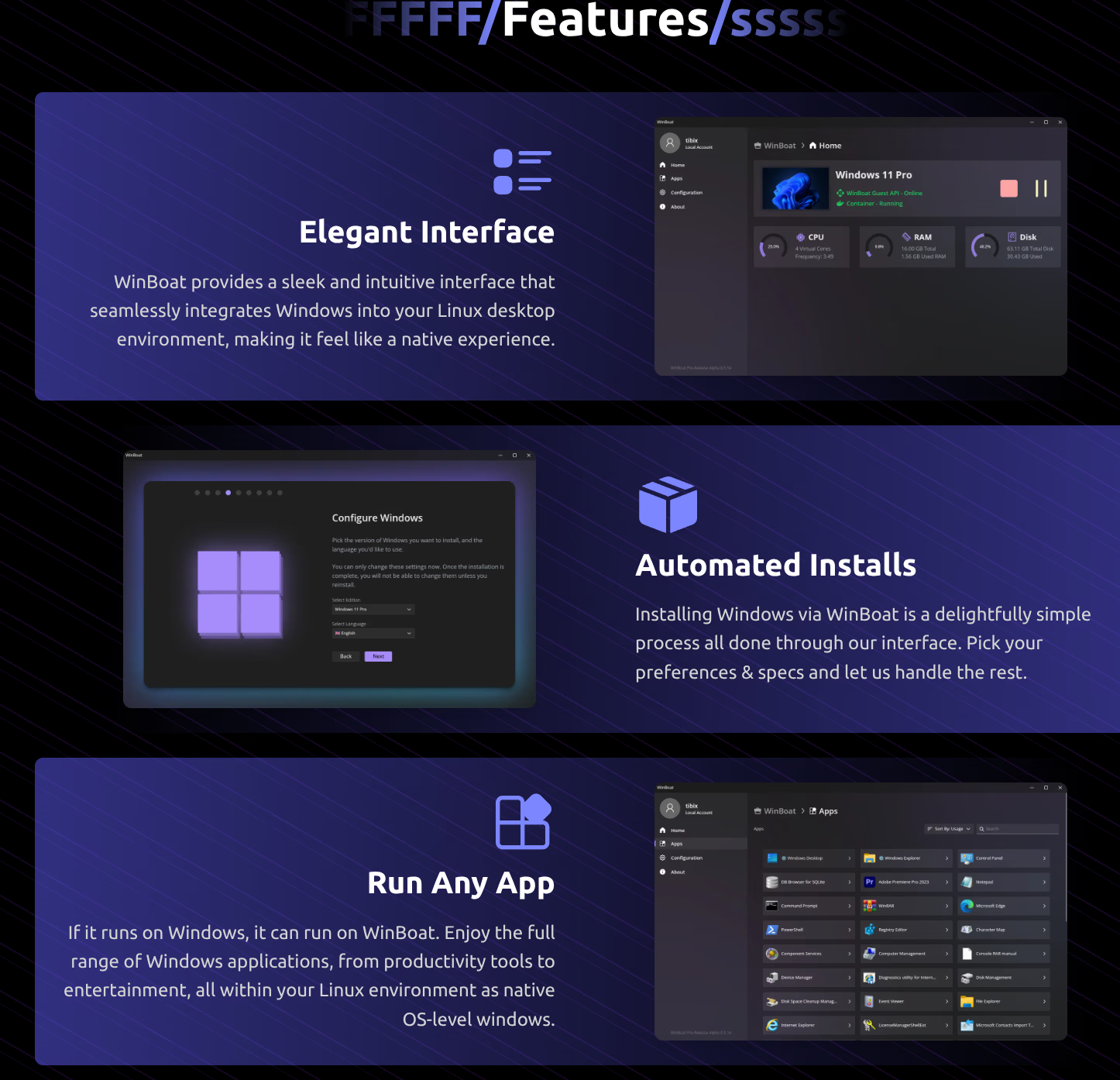
WinBoat is an open-source project that runs Windows inside a Podman container on Linux. The goal is to have Windows applications show up as regular windows on your Linux desktop, without needing a full VM. I tested it using Podman.
Status: Beta, but improving. Originally tested on v0.9.0, which was rough. Retested on v0.9.2 and it is noticeably steadier. Not finished, but it is starting to look like something.
get-icon call, along with fixes for UNC path access, control character injection, a Slowloris-style attack, and passwords being written to the compose and FreeRDP logs. The project credits @AndreaBonn and says it shipped a fix within four hours of disclosure.The project calls this the final 0.9 release: maintenance and security only, ahead of 1.0. Worth knowing: v0.9.2 also bumps dockur/windows from 5.14 to 6.05, a major jump in the image that actually runs Windows. That may well be why the startup behaviour improved for me, though I have not confirmed a direct link.
Installation
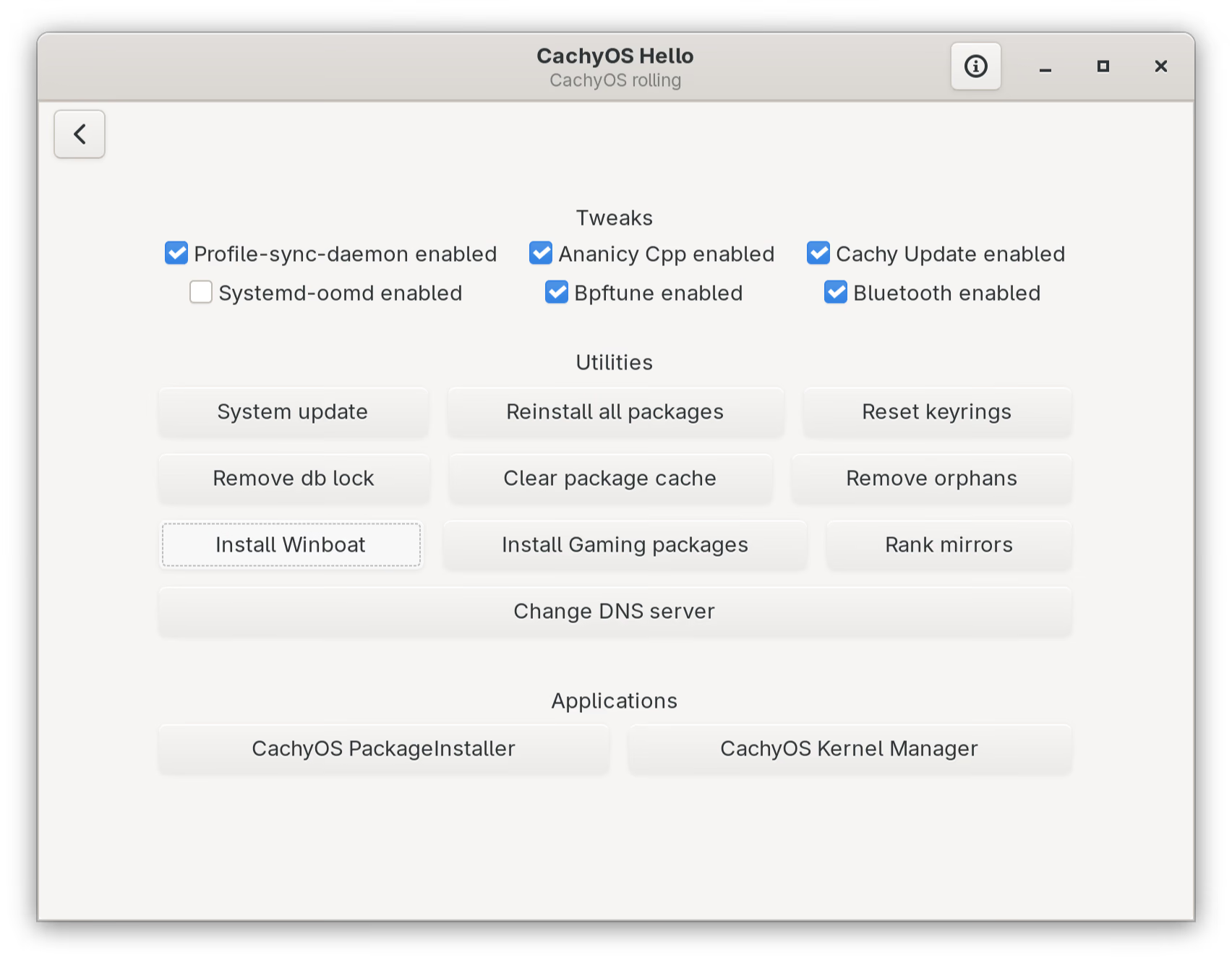
I got WinBoat from the CachyOS package repository:
sudo pacman -S winboatPackage source: packages.cachyos.org: winboat
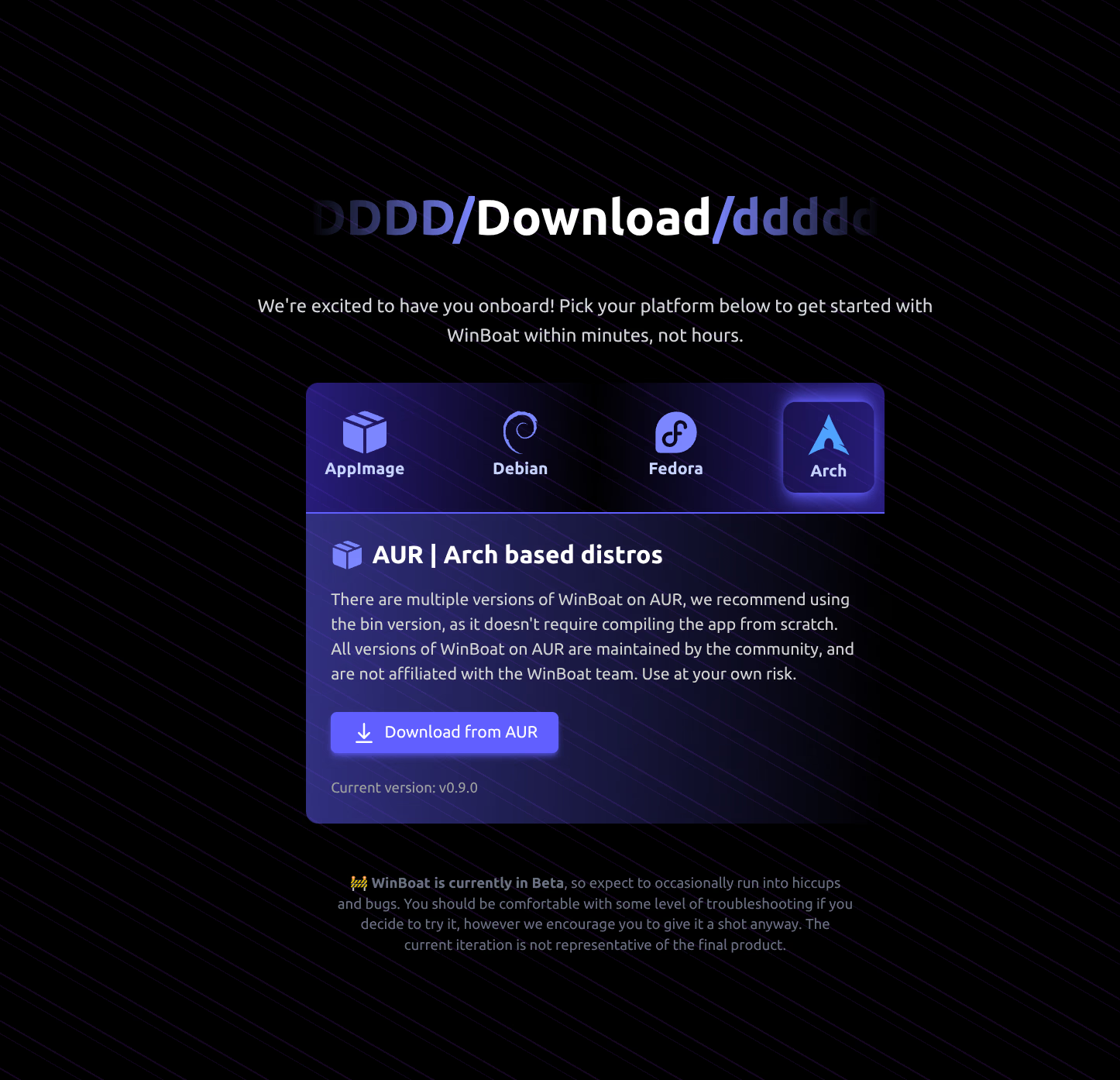
The WinBoat website also lists an AUR package (winboat-bin) for other Arch-based distros. On CachyOS, the repo package is simpler.
Setup
When you first run WinBoat, it walks you through a setup wizard: install location, user credentials for the Windows account, and hardware allocation (CPU cores, RAM, disk size). From there it downloads and installs Windows 11 automatically through Podman. The install takes a while; you can follow the progress in your browser. The port can change between runs, so use this command to get the current URL:
# Podman
podman port WinBoat | grep "8006" | awk '{print "http://" $3}'
# Docker
docker port WinBoat | grep "8006" | awk '{print "http://" $3}'
The demo below covers a full session: wizard, installation in progress, WinBoat coming up with Windows actually running, and then my attempts to open Notepad and File Explorer.
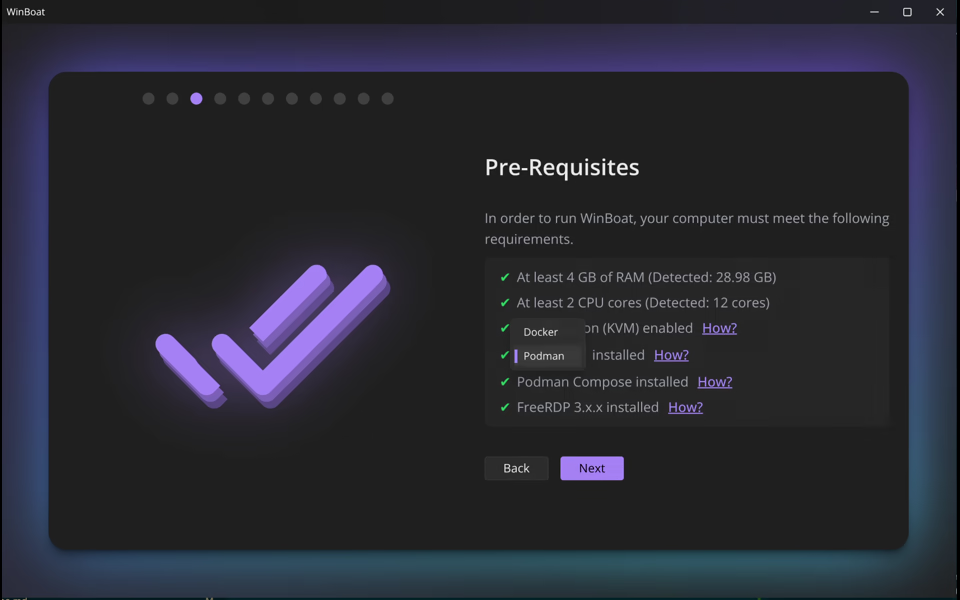
After a clean setup, WinBoat does start. WinBoat Guest API - Online and Container - Running showed up in the interface, the Windows apps screen loaded, and a Windows 11 login screen appeared in the browser via FreeRDP. That part worked.
The problem is getting back to that state reliably without going through the full setup again.
First launch
After installing, you can start WinBoat from the app menu or terminal. On first run it sets up a Windows 11 install through Podman automatically.
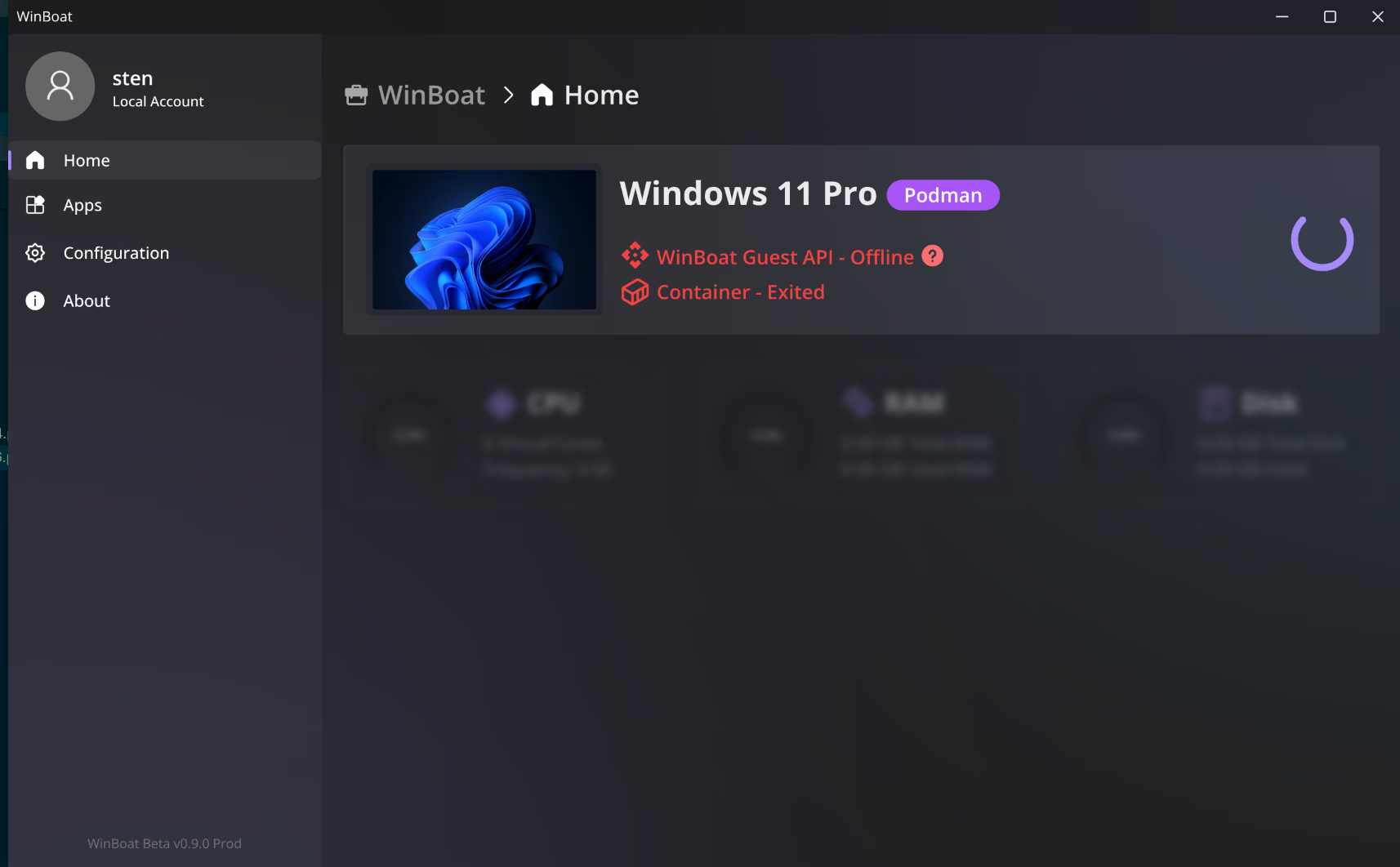
What I ran into most often: WinBoat Guest API - Offline and Container - Exited. Windows 11 Pro shows up in the interface but the container never reaches a running state.
Bugs
Everything in this section was seen on v0.9.0. On v0.9.2 the startup loop is far less frequent, but I am leaving the findings here since they describe what the project is working through.
The main issue: WinBoat gets stuck in a startup loop. The Podman container keeps trying to start but never gets there, no matter how long you wait. On v0.9.0 this happened regularly, not just on first setup.
Resetting WinBoat and going through the full setup again does get it running, but having to wipe and redo the setup every time is not a workable solution.
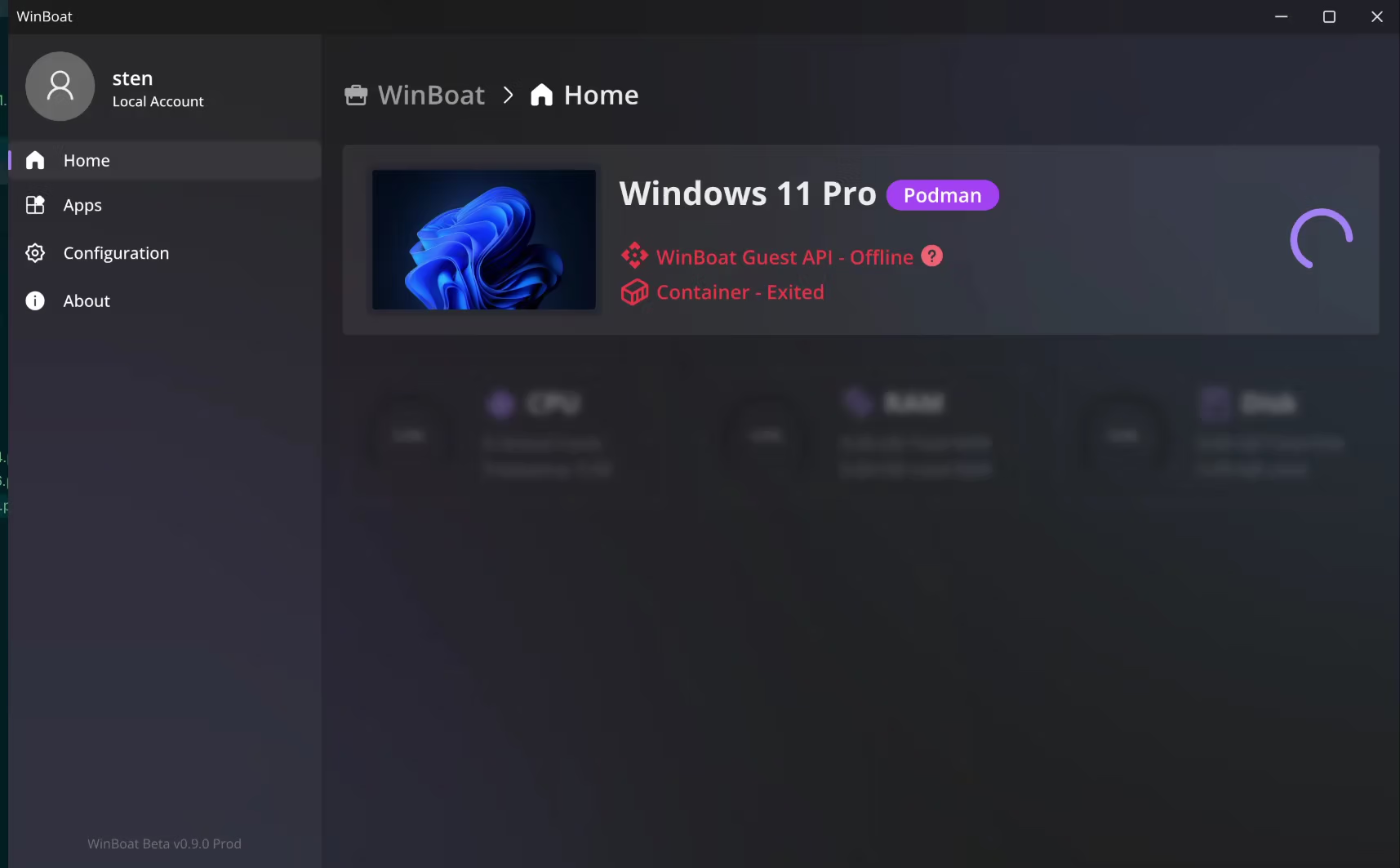
Other things I ran into:
- The container exits unexpectedly (“Container - Exited”)
- The Guest API never connects (“WinBoat Guest API - Offline”)
- Windows apps don’t reliably appear as windows on the desktop
When WinBoat does start, I tried something simple first: opening Notepad and File Explorer. I hadn’t installed Microsoft 365 yet via winget, so I started small. Instead of those apps, I got weird boxes and glitches on screen. I rebooted the container and killed some processes, but that didn’t help either. You can see this in the demo above.
So, what now?
Honestly, this is one of the coolest app concepts I’ve seen in a while. Running Windows apps as regular desktop windows without a full VM is something Bottles and Wine can’t do either, especially for Microsoft 365.
v0.9.2 moved this from “interesting but unusable” to “actually worth trying”. It is still not something I would put in front of someone who just needs Windows to work today. For that, VMware Workstation gives the best experience on this hardware, and the KVM/QEMU setup is a solid open-source alternative.
But the direction is right, and the project handled a security report in four hours. I am genuinely looking forward to the 1.0 stable release. WinBoat is a properly cool project and I hope it gets there.